

If your Apple Photos library feels overwhelming, you’re not alone. In this article, I’ll walk you through the best Apple Photos cleanup tools and simple hacks, in the exact order I recommend using them.
Messy Apple Photos Library?
Yeah, it happens. Most people don’t intentionally create a messy photo library… it just happens over time. New phones, cloud sync, screenshots, shared images, scans, and multiple imports all pile up quietly until one day you open Photos and think: “Where do I even start?”
The good news is that an Apple Photos cleanup doesn’t have to be scary or technical. With the right tools, and a gentle, step-by-step approach, you can make real progress without accidentally deleting photos you care about.
Let’s review how to go about it.

A Quick (Important) Apple Photos Cleanup Rule
Before we talk tools, here’s the most important thing to know: You don’t have to clean everything at once.
Apple Photos cleanups work best when you:
go slowly, with patience
focus on problem at a time
always know why you’re deleting something
Also: make sure you have a backup before you start. Cleanup feels much less stressful when you know you can recover something if needed. It’s a MUST.
Now, let’s talk about my three favorite tools that can help. Drumroll, please!
1. PhotoSweeper (The Easiest Way to Remove Duplicates in Apple Photos)
Duplicates are one of the most common Apple Photos problems, and one of the easiest to fix when you have the right tool. While Apple Photos has a built-in Duplicates feature, it doesn’t always catch everything. Not to mention that you don’t really have much control over the merge feature to fix anything well. PhotoSweeper gives you much more control and helps you see what’s really going on in your library.

Why people love PhotoSweeper
Finds exact duplicates and similar photos (ability to finely adjust search criteria)
Works directly with Apple Photos (no exporting needed) as well as Lightroom catalogs
Lets you decide what gets deleted
Shows clear side-by-side comparisons
Start with exact duplicates only, and do a full sweep. That’s the safest, least emotional place to begin, so it builds confidence fast. You don’t need to tackle “similar photos” right away. Small wins matter. Eventually, when you get to that point, you’ll want to do a few sweeps with varying search criteria to find everything. Work in batches.
What PhotoSweeper Does Exceptionally Well
PhotoSweeper shines because it does one thing extremely well: it helps you identify duplicates and near-duplicates without taking control away from you. Instead of automatically deleting anything, the program shows you clear, side-by-side comparisons so you can make confident decisions, especially important when you’re working with large archives.
Here’s what it does better than most duplicate-finding tools:
Flexible duplicate detection
You can choose whether you want to find exact duplicates only, or include similar photos based on how close they are visually. This lets you start conservatively and expand only when you’re ready.Clear visual comparisons
PhotoSweeper displays photos next to each other with details like resolution, file size, and creation date, so it’s easy to see which version makes sense to keep.Apple Photos integration
It works directly with your Apple Photos library, so you don’t need to export files or create temporary folders just to evaluate duplicates.User-controlled decisions
Nothing is deleted automatically. You review each group and choose what stays manually, or by using auto-settings with specific criteria (set by you).Scales well for large libraries
Whether you have a few thousand photos or several hundred thousand, PhotoSweeper remains responsive and manageable.
For many people, PhotoSweeper is the tool that finally makes duplicate cleanup feel safe, something that’s highly underrated when attempting cleanups.
2. Photos Takeout (A Gentler Way to Export and Back Up Your Library)
One of the biggest frustrations with Apple Photos isn’t getting photos into the library — it’s getting them out in a usable, well-organized way. That’s exactly why Photos Takeout was created.

Why People Love PhotosTakeout
Apple Photos offers very limited export options, especially if you care about:
preserving embedded metadata
exporting into meaningful structures
controlling how and where your photos are saved
Photos Takeout fills those gaps. And yes, it’s easy-to-use.
What Photos Takeout Does Exceptionally Well
Photos Takeout excels at something Apple Photos itself makes surprisingly difficult: exporting photos in a clean, controlled, and predictable way without losing metadata. Instead of treating export as an afterthought, Photos Takeout is designed specifically for people who care about what happens to their photos once they leave Apple Photos.
Here’s what Photos Takeout does exceptionally well:
Preserves embedded metadata
Dates, keywords, captions, locations, and other important metadata are preserved during export, so your photos still make sense outside of Apple Photos.Creates organized folder structures
You can export photos into meaningful folders (by date, album, or other logic), instead of ending up with one giant, unmanageable pile of files.Gives you control over file naming and formats
Photos Takeout lets you choose how files are named and which versions are exported, making it much easier to integrate photos into another system.Works directly from Apple Photos selections
You can export from albums, smart albums, or specific selections, which makes intentional, staged exports much easier.Supports large, thoughtful exports
Whether you’re moving part of your library or preparing a full master archive, Photos Takeout makes the process more reliable and less stressful.
Photos Takeout is especially valuable when you’re transitioning photos to a new system, creating a local master archive, or preparing files for backup or long-term storage. Rather than deleting first and hoping for the best, Photos Takeout allows you to export with confidence, something that (once again) is highly underrated.
3. PowerPhotos (For Merging Multiple Apple Photos Libraries)
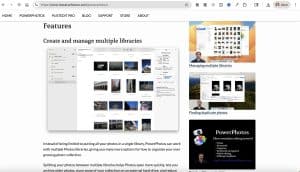
PowerPhotos is the most powerful tool on this list, and it’s our preferred tool for consolidation when you have many different types of Apple Photos libraries that need to come together (yep, we’ve had clients with as many as 63 of them…).
Why People Love PowerPhotos
PowerPhotos is at its best when Apple Photos libraries start to multiply. Multiple libraries often appear for very understandable reasons.
People often create separate libraries to:
divide business photos from personal photos
keep photos by year or project
manage photos across multiple Macs
handle different user accounts on the same computer
“start fresh” without dealing with the old library
This can be a good thought, but it’s misguided. Over time, this strategy leaves you with several partial libraries, and no easy way to bring everything back together.
What PowerPhotos Does Exceptionally Well
Here’s what PowerPhotos can help you with:
Safely merges multiple Apple Photos libraries
PowerPhotos allows you to combine libraries into one unified library while preserving albums, metadata, and organization (something Apple Photos cannot do on its own).Gives you visibility across libraries
You can see what’s in each library before merging, which helps you understand overlaps, gaps, and duplicates without guessing.Preserves structure during merges
Albums, folders, and metadata can be carried over, reducing the risk of ending up with a chaotic result.Helps resolve duplication across libraries
When the same photos exist in more than one library (a very common situation), PowerPhotos helps you identify and manage those overlaps thoughtfully.Reduces the stress of “choosing the wrong library”
Instead of wondering which library is the “real” one, PowerPhotos helps you bring everything together into a single, more manageable Photos library.
PowerPhotos is especially valuable when you’re ready to move away from fragmented libraries and toward one primary Apple Photos library that actually makes sense. Rather than forcing you to decide upfront which photos belong where, PowerPhotos gives you a controlled, reversible way to reunify your photos, so your library becomes simpler, not more complicated.
What You Actually Need for Your Apple Photos Cleanup
If you’re wondering where to begin, think about it this way:
Need to consolidate libraries? Use PowerPhotos first. Turn the chaos into one library that you can then declutter (with PhotoSweeper) and back up (with Photos Takeout).
Have one library with a ton of duplicates? Just use PhotoSweeper to get rid of clutter.
Need to export or back up something? Use Photos Takeout to do that in a controlled way.
After that, the built-in features from Apple Photos are enough to keep you steady.
The Most Important Part (Read This Twice)
Ongoing photo maintenance is a part of your job, but it does not need to be done perfectly. Just like other chores around the house, do the to the best of your ability on a regular basis, and don’t stress too much over it. As long as you’re keeping your photos safely backed up overall, we can always organize more and make things look prettier.
Regular maintenance is about:
reducing clutter (and keeping visual reminders out as much as possible)
making photos easier to find (i.e. by organizing them in a way that makes sense to YOU)
and feeling confident that your digital ecosystem works
With those things in place, you’ll be just fine.
Want Step-by-Step Help Cleaning Up Apple Photos?
If you’d like guidance that goes beyond tools—guidance that helps you understand what to do, when to do it, and why—that’s exactly what I teach inside DPO PRO: The Ultimate Photo Organizing Masterclass. Join us, and let’s get those photos back into your life! ✨
Featured Photo Courtesy of Hans Photo



