
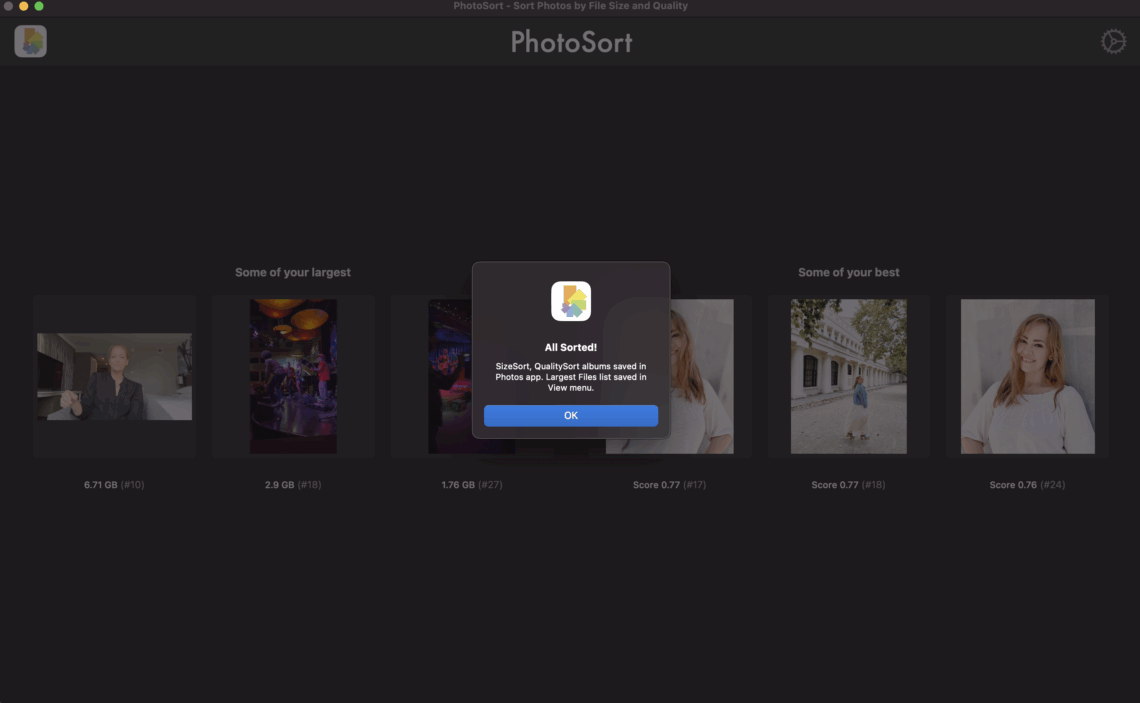
Ever feel like your Apple Photos app is dragging? Or that you’re running out of storage on your Mac or iPhone, even though you’ve deleted a few screenshots? You’re not alone. Photo libraries grow fast, and managing them well gets complicated. That’s where PhotoSort comes in. The makers of PhotoSort, App Initio, Ltd., has generously provided us with a lifetime account, so that we can test it out and break down for you – our readers – exactly how this new app can help you take back control of your Apple Photos library and save you money on your iCloud storage fees.
Introduction: The Overflowing Photo Problem
When you’re a memory maker, you have hundreds of thousands of memories saved. Family memories, vacations, everyday snapshots… plus plenty of duplicates, screenshots, and blurry pictures. Over time, your archive grows enough to where you find yourself with either storage or organizing problems, for example:
Your devices start to feel slow or sluggish
iCloud warns you that you’re running out of space (and nudges you to pay more)
Finding the photo you actually want becomes like searching for a needle in a haystack
The good news? PhotoSort can help solve these problems easily. It works with your Apple Photos library to clean things up, save space, and keep your memories safe.
Why Apple’s Built-In Features Aren’t Yet Enough
Apple Photos is great for everyday use, and we love it so much that we regularly teach it, but just like its competitors, it’s not perfect. It still has a few obvious shortcomings.
For example, it doesn’t make it easy to:
Spot huge videos that quietly eat up gigabytes
Merge duplicates and reduce clutter in bulk
Track your progress if you’re trying to free up a set amount of space
These are simple features that many programs should have, but surprisingly, they often don’t, and so we need to find better workarounds when we’re trying to streamline large libraries. This is why PhotoSort caught out eyes as a possible solution, and so far, we’ve been happy with its ease of use and simple interface.
Meet PhotoSort: Your Cloud Storage Hall Monitor
PhotoSort is a simple, powerful program that connects directly to your Apple Photos library.
It helps you:
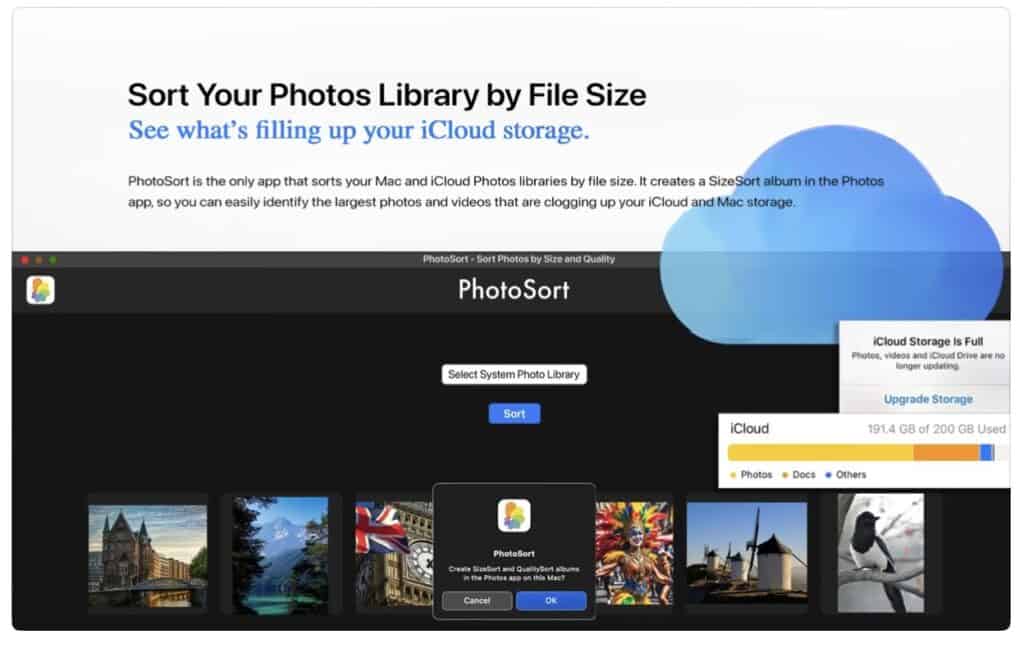
Sort your photos by size so you can instantly see the biggest space hogs
Identify duplicates and low-value photos like screenshots or blurry shots
Set a space-saving goal (e.g., free up 20 GB) and see which files to move or remove to get there
Move or archive big files you want to keep but don’t need on your main library
Think of it as a spring-cleaning tool designed just for your Apple Photos library.

How to Use PhotoSort (Step-by-Step)
Here’s how to use PhotoSort with your Apple Photos library:
Step 1: Always Back Up First
Before making any changes, always back up your Apple Photos library. You can use Time Machine, an external hard drive, or a cloud backup. This ensures that nothing important is lost – ever. Please note though that if you are optimizing your library, Time Machine won’t be enough as it will won’t have access to the full resolution iCloud content. This article explains how to backup when using this setting.
Not sure how to approach backups overall? Read out Backup Basics series.
Step 2: Scan Your Apple Photos Library with PhotoSort
Download, install, and open PhotoSort. Connect it to your Apple Photos library, and let it scan it. You’ll quickly see the largest items and where your space is going.
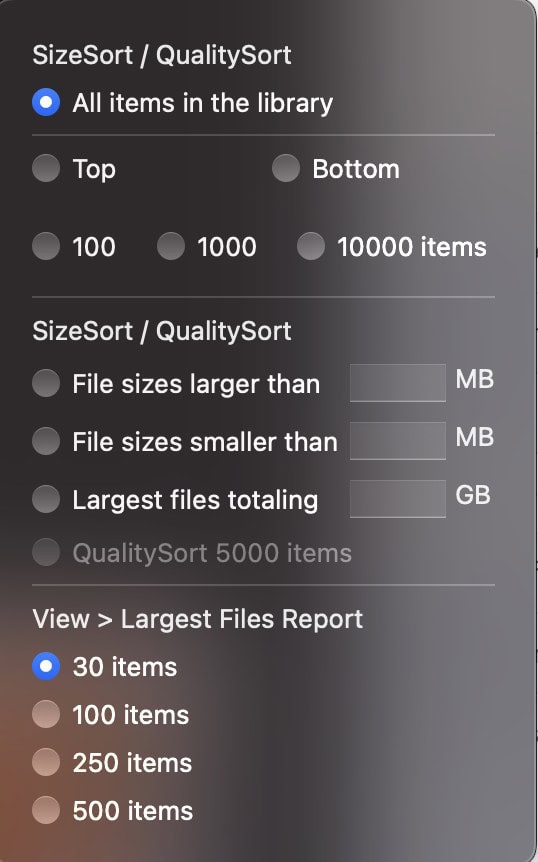
To get the accurate view, change the settings for how you wish to sort and see results. PhotoSort will create two albums in the Photos app: SizeSort and QualitySort, arranging your photos and videos in descending order of file size and aesthetic quality. The fact that these albums are created in Photos on Mac is handy, because this lets you manage (e.g. offload, delete, or Favorite) photos from within the Photos app itself.
Step 3: Take Action
Next, decide what to do with the results; we suggest:
Delete clutter: duplicates, screenshots, and bad photos
Move large videos (family events, 4K clips) to an external drive or alternate storage
if you need to cut costsArchive special but seldom-viewed items
to free up space
Step 4: Keep Things Tidy Long Term
Run PhotoSort every few months. That way, your library stays fast, storage costs stay low, and your photos remain organized.
Tips for Success
Remember: backups are your best friend
Always double-check before deleting
Empty the “Recently Deleted” folder in Photos to reclaim much-needed space
Plan cleanup during a time when you’re not in a rush — enjoy revisiting old memories as you go
Don’t Stress over Storage!
Your photos are precious, but clutter and storage stress don’t have to be part of the deal. Using PhotoSort, you can keep your Apple Photos library lean, organized, and under control — without losing the moments that matter. We recommend you try it out to see how easy it can be to free up space and get rid of clutter … and if you’re not sure where to begin with your photo collection, consider joining us in DPO PRO: The Ultimate Photo Organizing Masterclass.



